What Are Stream Overlay Ads? A Plain-English Explainer
How sponsor banners get into a live broadcast, how they differ from platform pre-rolls, and why they keep showing up after the stream ends.

A stream overlay ad is a sponsor graphic (a logo, banner, QR code or short animation) that a streamer places on top of their own broadcast using streaming software such as OBS Studio. The software mixes it into the picture before the video leaves the streamer's computer, so the ad becomes part of the stream itself. It shows up live and in recordings and clips, and it is sold by the streamer, not by the platform.
Key takeaways
- An overlay is any graphic layer on top of the main video. It becomes an overlay ad when a sponsor pays for that space.
- Overlay ads are composited into the video, unlike pre-roll and mid-roll ads, which the platform's ad system serves before or during the stream.
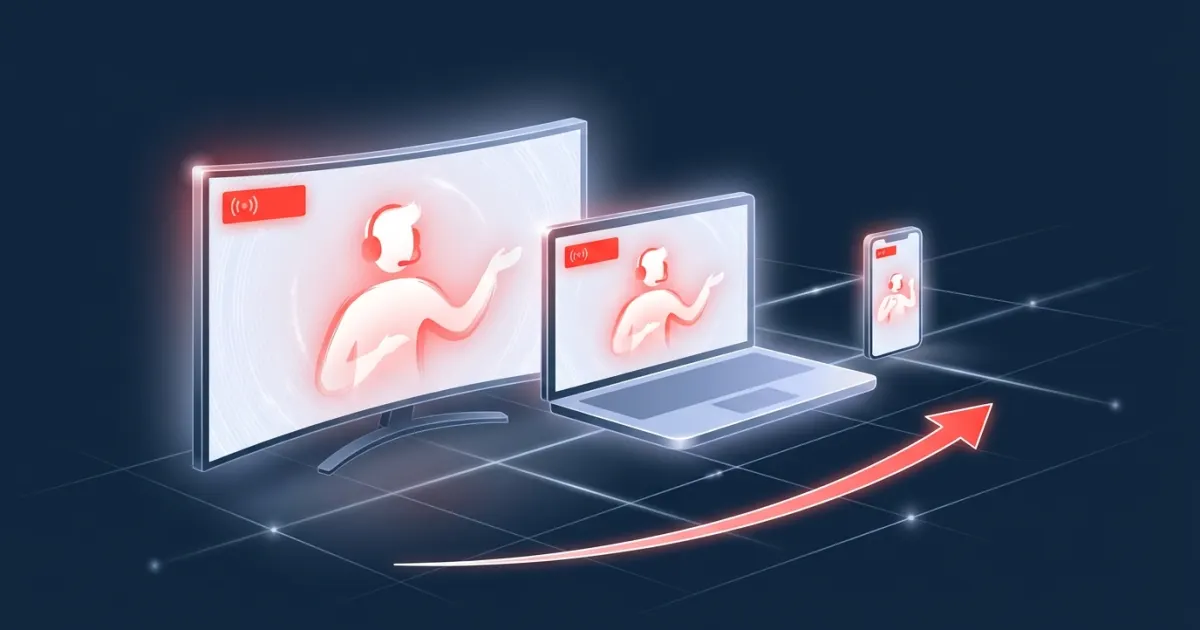
- Because they're part of the picture, overlay ads appear wherever the video goes: live, simulcasts, past broadcasts and clips.
- They give small advertisers a way to reach a channel directly, but with little targeting, and measurement depends on what you build in, such as QR codes or tracked links.
- Sponsor overlays come with disclosure duties and platform rules. Both are worth checking before a campaign.
What is a stream overlay?
An overlay is anything layered over the main video of a stream: a webcam frame, follower alerts, a chat box, a "be right back" screen, or a sponsor's banner.
In OBS Studio, a popular free broadcasting program, overlays are built from scenes and sources. OBS's own guide puts it this way: "Scenes and Sources are the meat of OBS Studio. These are where you set up your stream layout, add your games, webcams, and any other devices or media that you want in the output" (OBS Sources Guide). Sources stack like layers: "A Source that is listed above another Source in the list will be on top and might hide what's beneath it."
Many overlays are web pages. OBS's Browser Source is described as "quite literally, a web browser that you can add directly to OBS," and by default its custom CSS sets the page background to transparent (OBS Browser Source). OBS's source list sums up its main use: "Add a web page to your scene. This is primarily used for stream alert overlays and chat boxes" (OBS Sources Guide).
The scene that's live is, in OBS's words, "what your viewers see". Every layer in it, including a sponsor's banner, becomes part of one finished picture.
What makes an overlay an ad?
Money, or something else of value, changing hands. A streamer's own logo is branding. A follower alert is a community feature. When a brand pays for a spot in that layout, the overlay is advertising, and it carries the same disclosure duties as any sponsorship (more on that below).
Overlay ads come in a few common forms:
| Type | What it looks like | Typical use |
|---|---|---|
| Logo bug | A small, persistent sponsor logo in a corner | Long-term sponsors, team or gear partners |
| Sponsor banner | A rectangular banner along an edge or in a corner | Product promos, launches, offers |
| Rotating carousel | Several sponsors cycling in one spot | Channels with more than one sponsor |
| Timed banner slot | A banner shown for a set number of minutes | Self-serve and pay-per-minute buys |
| Lower third | A strip across the bottom third of the screen | Announcements, segment sponsors |
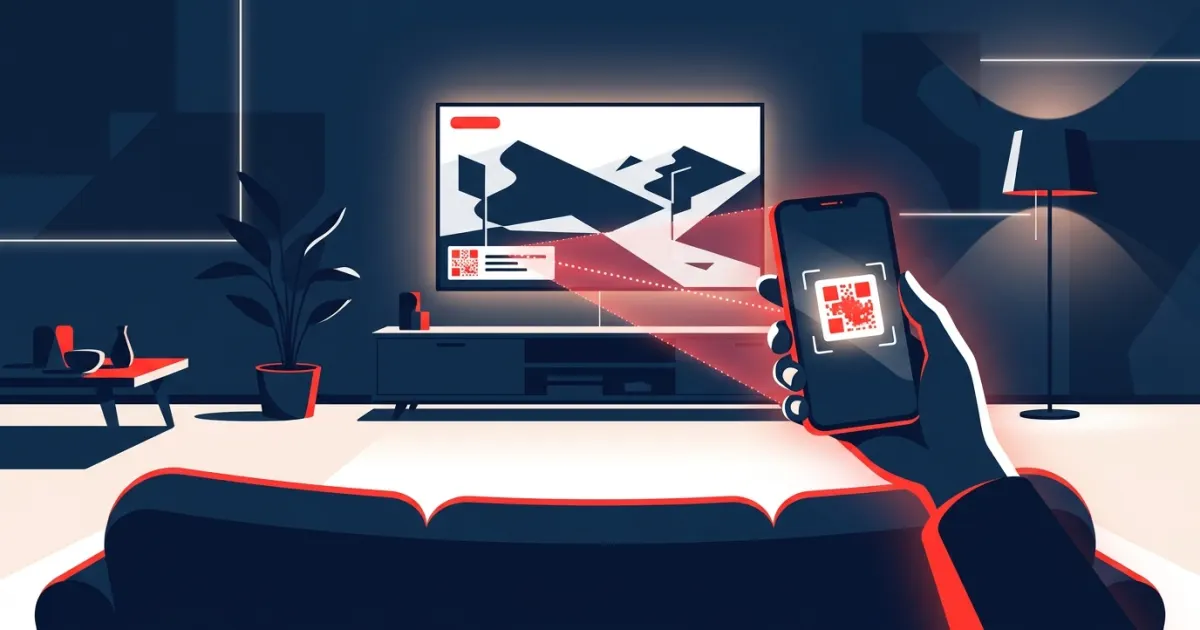
| QR call to action | A scannable code, often with a short link | Sending viewers to a site on their phone |
| Sponsor card | A full-screen graphic during a break scene | Sponsor reads between segments |
How overlay ads differ from platform ads
Platforms run their own ad systems on live streams, and those ads work differently.
On YouTube, "pre-roll and display ads are automatically turned on when monetization is turned on for your live stream," and "mid-roll ads are video ads that appear to viewers during a live stream." YouTube also offers side-by-side mid-rolls that "play next to the live stream, allowing you to run mid-rolls with less disruption" (YouTube Help). YouTube's ad formats page describes skippable video ads that can be skipped after 5 seconds, non-skippable ads of 15 or 20 seconds depending on region, and bumper ads of up to 6 seconds (YouTube Help).
On Twitch, Amazon Ads sells Stream Display Ads, which run an advertiser's display creative "along side" live content "while the creator sound remains on." The skyscraper unit renders "between the live stream and chat," and the lower-third renders "directly below the live stream player" (Amazon Ads).
| Platform video ads (pre-roll, mid-roll) | Platform display ads (e.g., Twitch Stream Display Ads) | Streamer overlay ads | |
|---|---|---|---|
| Who sells it | The platform | The platform | The streamer, directly or through a marketplace |
| Who picks the advertiser | The platform's ad system | The platform's ad system | The streamer |
| Where it appears | In the player, before or during the stream | Beside or below the player | Inside the video frame |
| Interrupts the content? | Often, though some formats play side by side | No | No |
| Part of the recorded video? | No | No | Yes |
| Seen by ad-free subscribers? | Not on YouTube Premium | Depends on platform rules | Embedded promotions can still appear |
A note on terms: on YouTube, "overlay ads" used to mean something else: a platform-served banner over the video player. YouTube stopped running them on April 6, 2023, calling them "a legacy ad format that appears on desktop only" (YouTube Help). This article is about the creator-placed kind.
Why overlay ads are part of the video, and why that matters
The platform receives one finished picture, with the sponsor banner already inside it. That has four practical effects.
- It travels with the video. Wherever the broadcast goes, the banner goes too. That includes past broadcasts (VODs), highlights and clips cut from those minutes, as long as the streamer keeps them. It also includes simulcasts: Twitch announced in October 2023 that "you can now simulcast on any live streaming service" (Twitch Blog), so one overlay can appear on several platforms at once.
- Ad-free tiers don't remove it. YouTube says Premium members watch "without interruptions by ads before and during a video," but "may still see branding or promotions embedded in the content by the creator" (YouTube Help).
- There's no separate ad to block. Browser ad blockers generally work by stopping ads that load as separate requests. A banner that's already part of the video pixels doesn't arrive that way.
- It's permanent in replays. An expired coupon or a dead link in a VOD keeps showing long after the campaign ends. Use destinations that will still make sense later, and keep track of where your QR codes point.
Pros and cons
For advertisers
- Pros: you pick the exact channel your ad appears on. The ad sits inside content people chose to watch, it can still reach viewers on ad-free plans, and it can keep working in replays.
- Cons: there's no platform-style audience targeting. Reach depends entirely on the channel. Brand safety depends on the streamer's content, and you only get the measurement you build in: QR scans, tracked links, promo codes.
For streamers
- Pros: direct income on your own terms. You choose the sponsors, set the price, and keep the viewer experience uninterrupted.
- Cons: banners take screen space, too many sponsors can feel cluttered, and you take on disclosure and platform-policy responsibilities.
Disclosure and platform rules
In the US, the FTC's guidance for influencers says a video disclosure "should be in the video and not just in the description," and that in a live stream "the disclosure should be repeated periodically so viewers who only see part of the stream will get the disclosure" (FTC). A persistent "Ad" or "Sponsored" label on the overlay is one practical way to keep a disclosure on screen. Platforms add their own tools: on YouTube, selecting the paid promotion button "adds a disclosure label that appears at the beginning of your video" (YouTube Help).
Platform rules can also change quickly. In June 2023, Twitch announced branded content guidelines that would have banned "burned in" ads, meaning display banners, video or audio placed directly into streams, except for tiny display ads taking up less than 3% of the screen. It withdrew them within a day, writing: "These guidelines are bad for you and bad for Twitch, and we are removing them immediately" (TechCrunch). Check each platform's current branded content policy before a campaign. Our guide to sponsorship disclosure on live streams covers the details. This is general information, not legal advice.
How overlay ads are bought and sold
Overlay sponsorships are often arranged by hand: emails, DMs, a rate card and an invoice. That works for big channels with managers. For a 20-minute banner on a mid-sized stream, the back-and-forth can take more time than the ad is worth. Self-serve marketplaces exist to remove that friction.
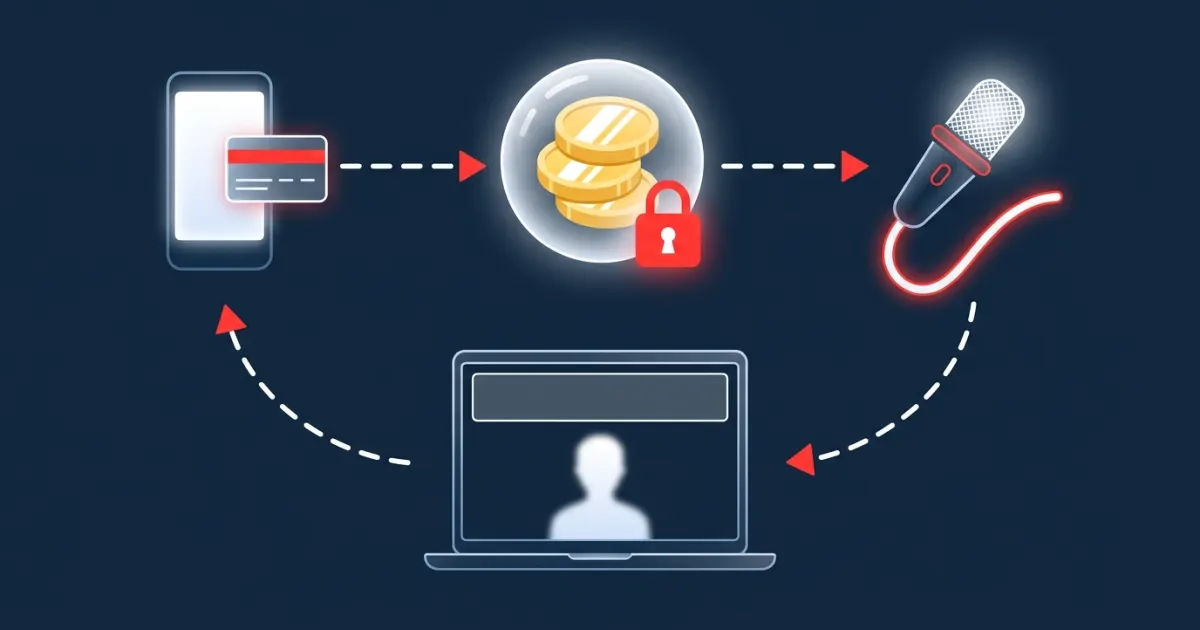
On AD on Live, a streamer signs up free, sets a price per minute in USD and a banner size in pixels (300×100 by default), and adds a personal overlay URL to OBS Studio as a Browser Source. It also works in other software that supports browser sources, such as Streamlabs Desktop. When no ad is running, the overlay shows a QR code linking to the streamer's booking page with the price ("AD Here — $X/min"), which streamers can hide with ?idle=hide. An advertiser books 1 to 60 minutes without an account, uploads a JPG, PNG or GIF banner (up to 2 MB), crops it to the streamer's aspect ratio and pays with PayPal. The payment is captured only when the streamer approves (or right away if they use auto-approve and are on air when the ad is booked), and a rejected ad is never charged. While the ad runs, the overlay shows the banner with a QR code, a countdown and a small "Ad" label. Scans go through a short tracking link, so AD on Live can count scans and clicks, including scans from VODs and clips after the ad ends, since the link keeps redirecting. It does not measure impressions or viewer counts.
Setting this up yourself? Start with the OBS Browser Source overlay guide. Buying? See how pay-per-minute ad slots are priced and why QR codes became the bridge from screen to phone.
The bottom line
Stream overlay ads are one of the simplest forms of live stream sponsorship: a graphic in the corner of the screen, placed by the person whose audience it reaches. They don't interrupt the content, they stay in the replay, and they're sold by the creator, which makes them a good fit for small brands and small channels alike. Streamers can join AD on Live free and start selling slots from their overlay, and advertisers can see how booking works.
Frequently asked questions
What is a stream overlay ad?
A stream overlay ad is a sponsor graphic, such as a logo, banner or QR code, that a streamer layers on top of their broadcast in streaming software like OBS Studio. Because it is mixed into the video, it is part of the stream itself rather than an ad the platform inserts.
How are overlay ads different from pre-roll and mid-roll ads?
Pre-roll and mid-roll ads are served by the platform's ad system before or during a stream. An overlay ad is chosen and placed by the streamer inside the video frame, so it runs alongside the content and is sold by the streamer rather than by the platform.
Do overlay ads appear in VODs and clips?
Usually, yes. Because the overlay is part of the broadcast picture, it appears in recordings, past broadcasts and clips cut from the moments when it was on screen, as long as the streamer keeps them.
Do YouTube Premium viewers see sponsor overlays?
YouTube's help center says Premium members watch without ads before and during videos but may still see branding or promotions embedded in the content by the creator. A sponsor overlay is embedded in the video by the creator.
Do sponsor overlays need a disclosure?
In the US, the FTC's guidance for influencers says disclosures should be in the video itself and repeated periodically during a live stream, and platforms have their own branded content rules. Check the current rules for your country and platform; this is not legal advice.
Sources
- obsproject.com/kb/sources-guide
- obsproject.com/kb/browser-source
- obsproject.com/kb/obs-studio-overview
- support.google.com/youtube/answer/7385599?hl=en
- support.google.com/youtube/answer/2467968?hl=en
- support.google.com/youtube/answer/6308116?hl=en
- advertising.amazon.com/resources/ad-specs/twitch/stream-display-ads
- blog.twitch.tv/en/2023/10/20/everything-we-announced-at-twitchcon-las-vegas/
- ftc.gov/business-guidance/resources/disclosures-101-social-media-influencers
- support.google.com/youtube/answer/154235?hl=en
- techcrunch.com/2023/06/07/twitch-backtracks-on-changes-to-branded-content-rules-after-stre...
Advertise on a live stream
Book a sponsor slot by the minute. You're charged only if the streamer approves your ad.
See how it works