How to Add a Sponsor Banner Overlay in OBS with a Browser Source
A step-by-step OBS Studio setup for sponsor banners: exact sizing, placement, transparency, testing and fixes for the problems streamers actually hit.
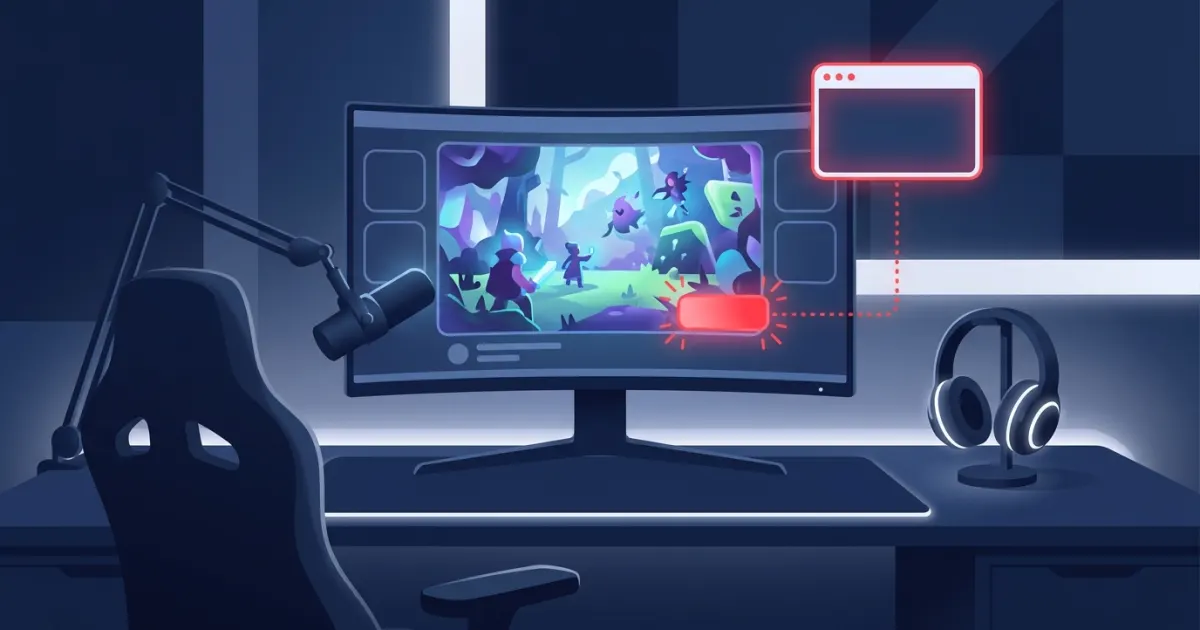
To add a sponsor banner overlay in OBS Studio, add a Browser Source, paste the overlay URL your ad platform gives you, and set the source's width and height to the exact banner size (for example, 300 × 100 pixels). Then move it to a spot that doesn't cover gameplay or your camera, keep it above your game capture in the Sources list, and test it in every scene before your first paid slot.
Key takeaways
- A Browser Source is a small web browser inside OBS. Sponsor overlays are web pages, so no plugin or download is needed.
- Type the banner's exact pixel size into Width and Height, then scale it on the canvas proportionally if you want it bigger.
- OBS's default Custom CSS makes the page background transparent. Leave it in place.
- Order matters: anything above the overlay in the Sources list will cover it.
- Before you sell your first slot, test at your real output resolution and scan the QR code from your phone.
What is an OBS Browser Source?
OBS Studio is free, open-source software for recording and live streaming. The OBS knowledge base calls the Browser Source "one of the most versatile sources available in OBS": it is an embedded web browser that draws a web page straight onto your canvas. Alerts, chat boxes and sponsor overlays usually work this way. The provider hosts a page, you paste its URL, and OBS renders it live.
These are the properties you will actually touch, as described in the OBS documentation:
| Property | What it does | What to set for a sponsor banner |
|---|---|---|
| URL | The page to load (defaults to an OBS sample page) | Your personal overlay URL |
| Width / Height | Sets the viewport size of the page (default 800 × 600) | Your exact banner size, e.g. 300 × 100 |
| Custom CSS | By default sets a transparent background, removes margins and hides the scroll bar | Leave the default |
| Shutdown source when not visible | Unloads the page when the source is hidden or not in the active scene | Usually off |
| Refresh browser source when scene becomes active | Reloads the page when you switch to that scene | Optional |
Before you start: check your canvas
Open Settings → Video. The OBS overview guide describes the Base (Canvas) Resolution as "the amount of space you have to fit your sources," and the Output (Scaled) Resolution as the resolution your stream actually outputs.
Your overlay is drawn at its pixel size on the canvas, then the whole picture is scaled to the output resolution. A 300 × 100 banner covers about 16% of the width of a 1920 × 1080 canvas and about 23% of a 1280 × 720 one. Stream a 1080p canvas at 720p output and everything, banner included, shrinks by a third.
From your ad platform's dashboard, grab the overlay URL and the banner size in pixels.
How to add the overlay in OBS Studio, step by step
- In the Scenes dock, select the scene you stream from most.
- Click the + button at the bottom of the Sources dock (OBS Sources Guide) and pick Browser from the list.
- Choose Create new, give it an obvious name such as "Sponsor overlay", and confirm.
- In the Properties window, paste your overlay URL into URL.
- Replace the default 800 × 600 with your banner size in Width and Height.
- Leave Custom CSS as it is.
- Click OK. The overlay appears on the canvas at its native size.
- Drag it to where you want it (see positioning below).
- In the Sources list, drag the overlay above your game capture, display capture and camera. OBS's docs are explicit: "Sources that are above others in the Sources list are also located above other Sources in the preview."
Doing this mid-stream? Turn on Studio Mode, which, per OBS, "allows you to change your Scenes in the background without your viewers being able to see you making those changes."
Sizing: get the pixels right first, then scale
Width and Height set the page's viewport. If it doesn't match the banner's shape, the banner can come out stretched, cropped or padded with empty space, so type the exact size first.
To make the banner bigger or smaller on screen, change its size on the canvas instead. Select the source and drag the red handles of its bounding box, or open Edit → Transform → Edit Transform (Ctrl+E on Windows, Cmd+E on Mac) to type exact values. Keep the proportions. A 300 × 100 banner is 3:1, so 450 × 150 is 1.5× and 600 × 200 is 2×.
Two shortcuts from the OBS Sources Guide help here:
- Reset Transform (Ctrl+R / Cmd+R) puts the source back to its original size if you've distorted it.
- Holding Alt (Option on Mac) while dragging a handle crops the source instead of resizing it. That's easy to do by accident, so watch for green edges.
Scaling up makes the banner and QR code easier to see, but it covers more of your stream and softens the graphics. Test a few sizes in a short recording and keep the smallest one where the QR code still scans easily from your phone.
Where should a sponsor banner go on screen?
Rules that hold for most layouts:
- Use a corner or an edge that stays quiet. Avoid the game's HUD, minimap, kill feed, your facecam, chat box and alert area.
- Leave a margin. Keep the banner a little away from the canvas edge, where the viewer's player controls and captions can appear.
- Stay consistent. Put it in the same place in every scene so regular viewers learn where to look.
- Check your vertical layout. Twitch's Dual Format streaming, launched in June 2026, sends horizontal and vertical versions of a stream at the same time. If you build a vertical layout, add the overlay there too; a source only appears in layouts that contain it.
Add the overlay to every scene you use while live
Advertisers are paying for minutes on screen, so the banner should be visible wherever you spend time live. In each additional scene, click +, pick Browser, and choose Add Existing instead of creating a new source. As explained on the OBS forums, "Add existing" creates a reference to the same source: change the URL once and every scene follows, while position and size can still differ per scene.
During a paid slot, avoid parking on scenes without the overlay, such as a full-screen "be right back" card.
Shutdown source when not visible unloads the page while it's off screen to save resources; Refresh browser source when scene becomes active reloads it on every switch. Either works for a sponsor overlay. If you see stale content after switching scenes, turn on the refresh option.
Transparency: keep the default Custom CSS
When you create a Browser Source, OBS pre-fills this Custom CSS:
body { background-color: rgba(0, 0, 0, 0); margin: 0px auto; overflow: hidden; }
It makes the background transparent, removes margins and hides scroll bars (OBS docs), so only the overlay's own graphics reach your stream. If you add CSS of your own, keep these rules.
Test before your first paid slot
Run through this checklist once, and again after any big layout change:
- It loads: paste the overlay URL into a normal browser tab. You should see the overlay, not an error page.
- It's the right shape: in the OBS preview, the banner isn't stretched or cropped.
- It's on top: the overlay sits above gameplay and camera in every scene you use live.
- It's readable at output size: make a short test recording at your usual output resolution and watch it full screen and on your phone.
- The QR code scans: point your phone at your monitor from your normal seating distance and scan it.
- It's in every layout: check each scene, plus your vertical layout if you have one.
Troubleshooting common problems
| Symptom | Likely cause | Fix |
|---|---|---|
| Nothing shows at all | Source hidden (eye icon), placed below another source, added to a different scene, or idle state hidden while no ad is running | Check the eye icon, move it up the Sources list, check the scene; remove ?idle=hide temporarily to test |
| An error page or the OBS sample page shows | URL missing, mistyped or cut off | Copy the URL from your dashboard again and paste it in full |
| Banner is stretched, squashed or cropped | Width/Height don't match the banner, or the source was resized unevenly | Re-enter the exact size, use Reset Transform, then resize proportionally |
| Overlay seems stuck or out of date | Page needs a reload | Click Refresh cache of current page in the source's properties |
| Still blank or grey | Browser rendering or network issue on that PC | A long-standing fix on the OBS forums is unchecking Settings → Advanced → Sources → Enable Browser Source Hardware Acceleration and restarting OBS; also make sure a firewall isn't blocking OBS from the internet |
If the QR code is hard to scan, the cause is usually size and compression rather than OBS. Our guide to QR codes on live streams covers that in detail.
Using Streamlabs Desktop or other broadcasting software
The same URL works in any broadcasting app with a browser source. For Streamlabs Desktop, Streamlabs' own guide lists the steps: in Sources, click the plus icon, choose Browser Source, name it, click Add Source and paste the URL. Its settings include Width, Height, FPS and custom CSS, plus "Shutdown source when not visible" and "Refresh browser when scene becomes active." Sizing and ordering work the same way.
How this works on AD on Live
AD on Live is a self-serve marketplace where streamers sell short, time-based banner slots on their overlay. Setup follows exactly the steps above:
- Sign up free with email verification and pick a channel name. You get a public booking page at
adonlive.com/s/{channel}. - Set your price per minute in USD and your banner size in pixels (300 × 100 by default).
- Copy your personal overlay URL from the dashboard and add it in OBS as a Browser Source sized to your banner. No plugin or download is required.
When no ad is running, the overlay shows a QR code to your booking page plus your rate ("AD Here — $X/min"), so viewers and brands can book the next slot. Add ?idle=hide to the end of the URL to hide this idle card, but remember it's how people discover your booking page.
When an ad runs, the overlay shows the advertiser's banner with a QR code, a countdown and a small "Ad" label; the QR code goes through a short tracking link that counts scans and clicks. You get an email when an ad is waiting and approve or reject it from the web dashboard or the desktop app. Approving only works while you're on air, meaning this overlay is online in OBS (or you've started a live session in the desktop app), and an approved ad starts right away. Auto-approve, if you turn it on, also applies only while you're on air. If you use display or window capture, the optional desktop app for Windows and macOS can show the overlay as a transparent, always-on-top window. More in how it works and pricing.
Set it up once, then focus on your stream
Setup takes a few minutes: one Browser Source, the exact banner size, a sensible corner and a test scan. Then read how to review and approve ads and how to price your ad slots per minute.
Ready to earn from your overlay? Create your free streamer account and get your overlay URL.
Frequently asked questions
What size should a sponsor overlay Browser Source be in OBS?
Set the Browser Source width and height to the exact banner size your overlay provider gives you, for example 300 × 100 pixels. If you want it bigger or smaller on screen, resize the source on the canvas afterward and keep the same proportions.
Why is my OBS Browser Source blank?
Check that the URL is complete, the source is visible (eye icon), it sits above your game capture in the Sources list, and you are in the right scene. Then click "Refresh cache of current page" in its properties. A long-standing fix on the OBS forums for blank sources is toggling "Enable Browser Source Hardware Acceleration" in Settings → Advanced and restarting OBS.
Is an OBS Browser Source transparent by default?
Yes. OBS fills in a default Custom CSS rule that sets the page background to transparent, removes margins and hides scroll bars, so only the overlay's own graphics appear on your stream.
Can I use the same overlay URL in Streamlabs Desktop?
Yes. Streamlabs Desktop has its own Browser Source: add it from the Sources panel with the plus icon, paste the URL and set the width and height to the banner size.
How do I hide the AD on Live overlay when no ad is running?
Add ?idle=hide to the end of your overlay URL. The idle "AD Here" card with your booking QR code is then hidden, and the overlay appears only while an ad is running.
Sources
- obsproject.com/
- obsproject.com/kb/browser-source
- obsproject.com/kb/sources-guide
- obsproject.com/kb/obs-studio-overview
- obsproject.com/forum/threads/existing-source-cant-change-settings.98541/
- obsproject.com/forum/threads/solved-obs-22-0-2-browser-source-not-functioning-grey-blank-s...
- streamlabs.com/content-hub/post/introducing-browser-source-interaction-for-streamlabs-desk...
- blog.twitch.tv/en/2026/06/17/introducing-dual-format-and-2k-streaming-on-twitch/
Sell sponsor slots on your stream
Create a free channel, add one OBS browser source and approve the ads you like.
Start earning — it's free