How to Track Live Stream Ad Results With UTM Links and QR Scans
A practical measurement setup for stream ads: UTM naming, GA4 reports, mobile landing pages, honest attribution, and the simple math that tells you whether a slot paid off.
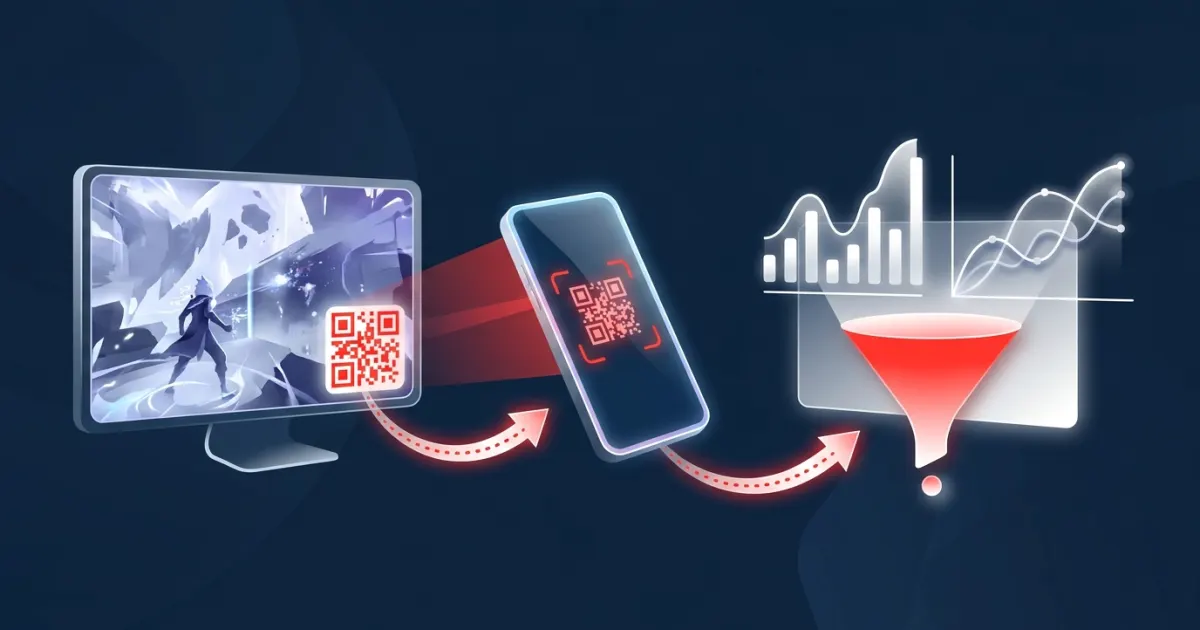
To track a live stream ad, send it to a dedicated landing page through a UTM-tagged URL, count QR scans with a tracking link, and read visits and conversions in Google Analytics 4 (GA4) under Acquisition > Traffic acquisition, broken down by Session campaign. Then compare scans, visits and conversions with what you spent, and expect part of the ad's effect (people who saw it and searched for you later) to arrive untagged.
Key takeaways
- Give every stream placement its own UTM-tagged URL, and always set
utm_source,utm_mediumandutm_campaign. - QR scans and GA4 sessions measure different steps of the journey. They won't match exactly, and that's normal.
- Untagged QR traffic tends to land in "(direct) / (none)", which usually gets no attribution credit. Tags fix that.
- Scans happen on phones, so the landing page must be built for mobile and match the banner's promise.
- Judge results by cost per scan and cost per conversion across several slots, plus halo signals like branded search.
What you can and can't measure from a stream ad
A stream ad produces several signals, each from a different place:
| Signal | Where it comes from | What it tells you |
|---|---|---|
| QR scans / clicks | The tracking link behind the QR code | How many people acted on the ad |
| Sessions and engagement | GA4, via your UTM tags | How many scans became site visits, and what visitors did |
| Key events (sign-ups, purchases) | GA4 key events | Business results you can put a cost on |
| Promo code redemptions | Your checkout or store | Conversions, including people who never scanned |
| Branded search | Google Search Console | Delayed interest: people who searched for you after seeing the ad |
| Viewer numbers | The streamer's platform analytics | How many people could have seen it |
The last row is worth a conversation with the streamer. YouTube, for example, shows creators peak and average concurrent viewers for each live stream.
UTM parameters in plain English
UTM parameters are tags added to the end of a URL that tell your analytics where a visit came from. GA4's URL builder documentation lists these:
| Parameter | Google's description | Use on a stream ad |
|---|---|---|
utm_source |
"Referrer, for example: google, newsletter4, billboard" | The streamer's channel |
utm_medium |
"Marketing medium, for example: cpc, banner, email" | banner |
utm_campaign |
"Product, slogan, promo code, for example: spring_sale" | Your campaign name |
utm_content |
Used "to differentiate creatives" | QR code vs. chat link, or banner A vs. B |
utm_id |
"Campaign ID" | Optional internal ID |
utm_term |
"Paid keyword" | Usually not needed |
Three rules from Google are worth memorizing:
- "You should always use
utm_source,utm_medium, andutm_campaign." - Parameter values are case sensitive:
utm_source=googleandutm_source=Googleshow up as two different sources. Use lowercase everywhere. - If any UTM parameter is present, GA4 derives all cross-channel traffic-source values from UTM parameters only, and missing ones show up as "(not set)" (Google). Tag completely or not at all.
A naming convention for live stream ads
Consistency matters more than the exact words. Here's a simple scheme for streams:
| Parameter | Example value | Why |
|---|---|---|
utm_source |
pixelcafe (the channel) |
Compare streamers side by side |
utm_medium |
banner |
Groups into GA4's Display channel |
utm_campaign |
fall_launch_2026 |
Groups every stream in one push |
utm_content |
overlay_qr or chat_link |
Separates scans from taps |
Channel name and campaign are made-up examples.
The finished URL looks like this:
https://www.example.com/demo?utm_source=pixelcafe&utm_medium=banner&utm_campaign=fall_launch_2026&utm_content=overlay_qr
Why banner? GA4 sorts traffic into default channel groups by rules. Its Display channel matches when the medium is one of "display", "banner", "expandable", "interstitial" or "cpm". Invent a medium like qr or stream and the traffic may land in a channel you didn't intend, or in "Unassigned," the bucket for traffic no rule matches. That's survivable if you always analyze by campaign, but banner keeps channel reports tidy.
Build and test your tracked link
- Build it with Google's Campaign URL Builder instead of typing parameters by hand.
- Open it in a browser and confirm the page loads with the parameters still in the address bar. Google warns that redirects can strip UTM parameters (its examples are redirects between sites and from HTTPS to HTTP), so check any redirects on your own site too.
- Scan the real QR code with your phone and check GA4's Realtime report, which shows activity from the last 30 minutes.
- Check the standard reports later. Google's data freshness table puts Realtime at "typically a few minutes," while full daily data for standard properties takes around 12 hours.
Why untagged QR traffic shows up as "Direct"
GA4 reports "(direct) / (none)" for traffic that "doesn't have a clear referral source." Google's list of causes includes links without UTM parameters, redirects that strip them, URL shorteners that remove referral details, and ad blockers.
A scan from a phone camera isn't a click on a web page, so there's usually no referring site for analytics to record. Without tags, your stream traffic blends in with everyone who typed your URL directly.
That has a cost beyond messy reports. Google's attribution documentation says all models "exclude direct visits from receiving attribution credit, unless the path to key event consists entirely of direct visits." Untagged stream traffic can lose the credit for conversions it started.
One more distinction: GA4 has "Session" dimensions (where each visit came from, in the Traffic acquisition report) and "First user" dimensions (where new users first came from, in the User acquisition report), as Google explains in its page on traffic-source scopes. For campaign results, use the Session versions.
Build the landing page for the scan
Everyone who scans is on a phone, mid-stream, with their attention split. The page should make the next step obvious:
- Mobile first and fast. Test it on a phone over cellular data, not just office Wi-Fi.
- Message match. Repeat the banner's headline and offer at the top, so visitors know they're in the right place.
- One action. Download the demo, claim the code, join the waitlist. Not your whole menu.
- A code they can use later. Show a promo code on the page. People who don't buy now can still use it, and redemptions become another signal.
- Not your homepage. A dedicated page keeps the data clean and the visitor focused.
Set up key events before the stream
In GA4, the actions that matter to your business are key events. Mark your sign-up, purchase or download event as a key event before the ad runs, so the Traffic acquisition report can show conversions next to sessions for your campaign.
Reading the results: simple math
Example with made-up numbers: you book a 20-minute slot at $3 per minute, so you spend $60. The tracking link counts 18 scans. GA4 shows 14 sessions for the campaign and 2 sign-ups.
- Cost per scan: $60 ÷ 18 = $3.33
- Scan-to-session rate: 14 ÷ 18 = 78%
- Cost per sign-up: $60 ÷ 2 = $30
Compare cost per sign-up with what the same result costs you in other channels. Keep a simple log so patterns emerge across streamers and time slots:
| Streamer | Date and time | Minutes | Spend | Scans | Sessions | Key events | Cost per scan | Cost per key event |
|---|---|---|---|---|---|---|---|---|
| (channel) | (slot) |
One slot is a small sample. Judge a streamer or a creative over several slots before drawing conclusions.
Why the numbers won't match
- Scans higher than sessions: some people scan and leave before the page loads; ad blockers and consent choices can stop the analytics tag; a misconfigured redirect can drop your tags.
- Sessions higher than scans: the same tagged URL got shared somewhere else. Keep chat links on their own
utm_contentvalue. - Conversions later, untagged: viewers who saw the banner and searched for you the next day show up as organic or direct.
Measure the halo, not just the clicks
Some viewers will never scan but will remember you. Three low-effort checks:
- Branded search: Google Search Console's Performance report shows clicks and impressions from Google Search by query. Compare searches for your brand name around stream dates.
- Promo code redemptions from the code shown on your landing page or banner.
- A "How did you hear about us?" field at sign-up or checkout, with the streamer's name as an option.
What AD on Live counts (and what it doesn't)
On AD on Live, the QR code on the streamer's overlay goes through a short tracking link (adonlive.com/r/{code}) that counts scans and clicks for your campaign, then redirects to your destination URL. The link keeps redirecting and counting after the ad ends, so scans from VODs and clips still reach you. If you don't enter a URL, it redirects to the streamer's booking page, so always add one.
- Put your UTM tags in the destination URL. The QR code only holds the short link, so long tags don't make the code harder to scan. Test the full path once with your own phone.
- Watch your inbox. You'll get email updates (receipt, approved and live, rejected or voided) and a completion summary with the click count.
- Know the limits. AD on Live counts scans and clicks. It does not measure impressions, viewer counts or demographics, and it offers no targeting. For audience size, ask the streamer.
- Pay only for approved ads. PayPal authorizes the payment at checkout, and funds are captured only when the streamer approves (or immediately with auto-approve, if the streamer is on air when you book). If the streamer rejects the ad or doesn't respond within 3 days, the authorization is voided.
For the creative side, see how to design a banner ad that works on a live stream and QR code best practices for live streams.
Start measuring with a small test
A tracked stream ad needs three things: a tagged URL, a mobile landing page that matches the banner, and a scan count to compare against your spend. Run a few short slots, log the results, and keep what works. To understand the buying model, read how pay-per-minute ads work and our practical guide to live stream advertising.
When you're ready, book your first tracked slot on a live stream. No account and no minimum budget beyond the streamer's per-minute price.
Frequently asked questions
What UTM parameters should I use for a live stream ad?
Set utm_source, utm_medium and utm_campaign, which Google says you should always use. A practical setup is the streamer's channel as the source, banner as the medium, your campaign name, and utm_content to tell QR scans apart from chat links.
Why does my QR code traffic show up as direct in GA4?
Visits without UTM tags and without a clear referral source are reported as (direct) / (none). Add UTM parameters to the URL behind the QR code and check that no redirect strips them.
Where do I see UTM campaign results in GA4?
Open the Acquisition > Traffic acquisition report and choose the Session campaign or Session source/medium dimension. The Realtime report shows activity from the last 30 minutes, which is useful for testing your link.
Does AD on Live report impressions or viewer counts?
No. AD on Live counts QR scans and clicks per campaign through its tracking link and emails advertisers a completion summary with the click count. For audience size, ask the streamer what their platform's analytics show.
Why don't my QR scan counts match GA4 sessions?
They measure different steps. Some people scan and close the page before it loads, and ad blockers can stop the analytics tag from recording a visit, so the two numbers rarely match exactly.
Sources
- support.google.com/analytics/answer/10917952?hl=en
- support.google.com/analytics/answer/11242870
- ga-dev-tools.google/campaign-url-builder/
- support.google.com/analytics/answer/9756891?hl=en
- support.google.com/analytics/answer/15258820?hl=en
- support.google.com/analytics/answer/10596866?hl=en
- support.google.com/analytics/answer/11080067?hl=en
- support.google.com/analytics/answer/9271392?hl=en
- support.google.com/analytics/answer/11198161?hl=en
- support.google.com/analytics/answer/13128484?hl=en
- support.google.com/webmasters/answer/7576553?hl=en
- support.google.com/youtube/answer/2853833?hl=en&co=GENIE.Platform%3DDesktop
Sell sponsor slots on your stream
Create a free channel, add one OBS browser source and approve the ads you like.
Start earning — it's free